
Your day in Docutrol
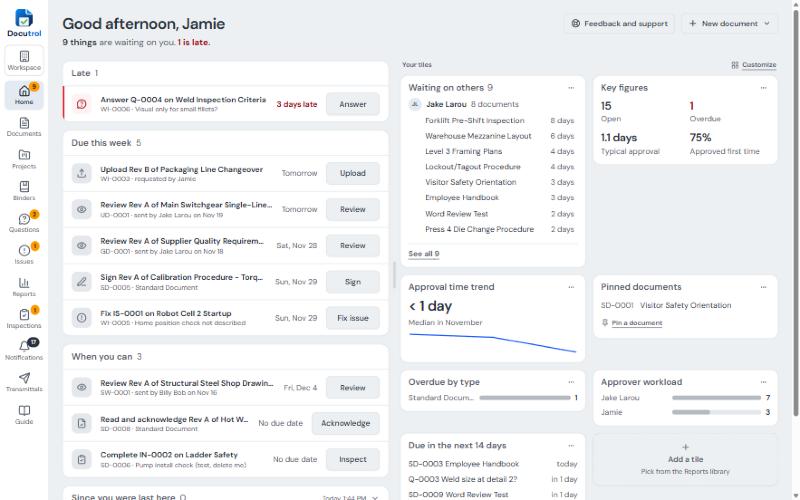
Docutrol keeps one list of what needs you. Home shows it when you sign in; each item opens straight to the screen where you do it, and you come back to Home when you're done.
How it goes
- You: Open Home (Late first, then due this week, then when you can)
- You: Press the button on a task (Review, Sign, Answer, Upload…)
- You: Do the step (The screen shows only what your step needs)
- Docutrol: It moves to the next person (And leaves your list)
Step by step
- Home greets you with how many things are waiting on you and how many are late.
- Each task is one sentence with one button. The button is named for what you do: Review, Upload, Sign, Acknowledge, Answer, Fix issue.
- Under your tasks, Since you were last here lists what other people did on your documents, Coming your way shows what will reach you next, and Jump back in lists the documents you opened last.
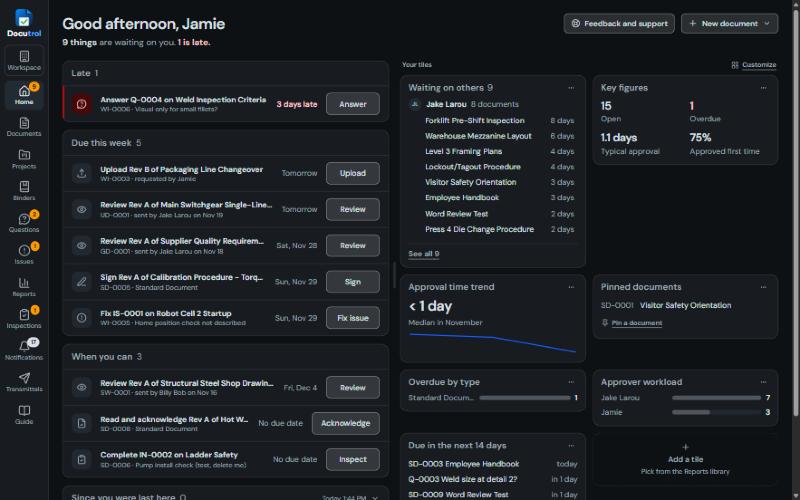
- The tiles on the right are yours to arrange: press Customize to add or remove them, drag a tile by its grip to move it, drag its bottom-right corner to resize it (or choose a size from its ⋯ menu), and drag the bar between the two sides to resize the panes.
- Documents, on the rail, is the full register: every document you can see, with a filter on each column.
Good to know
- Amber always means it is your turn. Red always means something is late. Nothing else uses those colors.
- The rail's icons can be dragged into the order you like. The order is saved for you.
- The bell collects notices: Needs you first, then Updates.