
Find a document
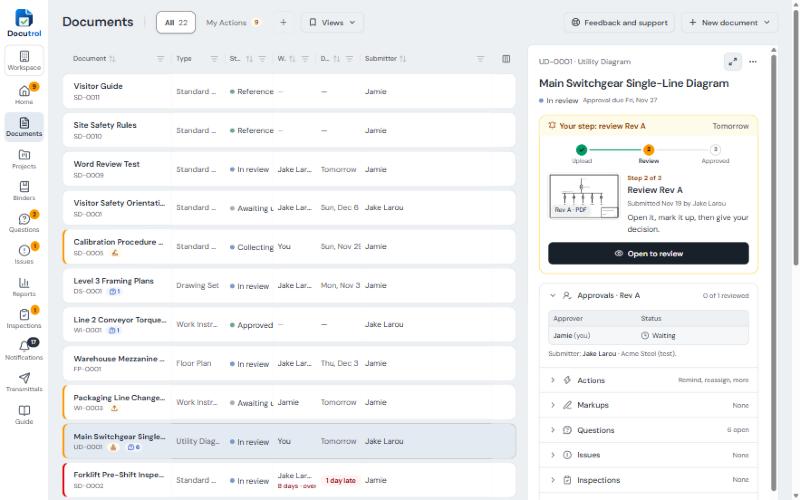
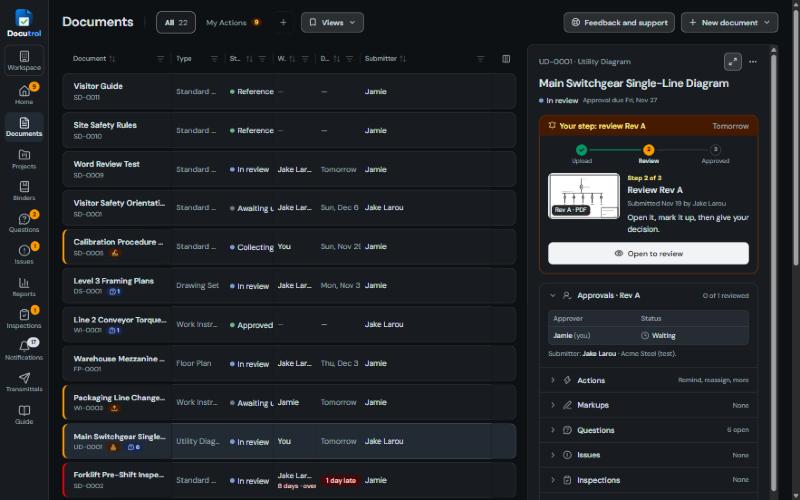
The register on Documents lists everything you can see, newest first. Filter it from the column headers, or keep your own filter buttons for the lists you use most.
How it goes
- You: Open Documents (The top document opens in the side pane)
- You: Filter a column (Type, status, who it is with, due date)
- You: Save it as a button (Press + beside My Actions) (optional)
- You: Select a row (The pane shows its step, approvals and history)
Step by step
- Open Documents on the rail. All shows everything; My Actions shows only what is waiting on you.
- Press the filter icon in a column header to narrow the list. Active filters show as chips under the header, each with an x to remove it.
- Press a header's arrows to sort by that column. A third press goes back to newest first.
- To keep a filter, press the dashed + beside My Actions, name the button and choose what it shows. You can keep up to three.
- Select a row to see the document in the side pane. Expand the pane to read the file beside its details, or open it full screen.
Good to know
- Views saves a whole set-up (filters, columns, sort, table or board) and can be shared with your team.
- Columns can be dragged to reorder and resized from their edges. Your layout follows you to any device.
- On a phone or a narrow window the register shows compact cards, with Filter and Sort buttons above them.